Personal account verification (KYC) in Kanga

Written by
Ewelina Skorupka
Published on
If you want to take the full advantage of the Kanga cryptocurrency exchange features, it is necessary to have the account verified and identity confirmed in compliance with the Know Your Customer (KYC) procedure.
In this article we will show you step by step how to verify your account using two methods and we will clarify why it is well worth confirming your identity when trading with Kanga Exchange.
Is KYC Verification Mandatory?
In accordance with MiCA regulations, every person logging in from the European Economic Area (EEA) is required to complete the KYC procedure (for individuals) or KYB procedure (for businesses).
If you use Kanga Exchange outside the EEA, KYC verification remains optional, depending on the regulations applicable in your jurisdiction.
Regardless of where you access the platform from, account verification enables:
- exchanging funds into stablecoins such as PLN°, EUR°, and USD° via the GoCash gateway (Kanga’s partner).
Cryptocurrency market regulations are changing dynamically, and exchanges operating in Europe are required to verify the identity of their clients. By having a verified account, you can be sure that any future regulatory changes will not affect your ability to use the platform.
KYC on Kanga Exchange – Two Available Methods
On Kanga Exchange, you can verify your account using one of two available methods. In this guide, we will present both of them.
To begin the account verification process, log in to the trade.kanga.exchange panel. If you do not yet have an account, refer to the guide explaining step by step how to create one.
In the upper-right corner, select “Account”, then in the menu that appears, click the “Verification” button.
Select the “Account” menu, then click the “Verification” button
At this stage, you will be asked to choose the type of verification: either for a personal account or a business account. If you are a retail customer, select the KYC option.
Check the box indicating that you want to complete the Personal account verification (KYC)
Provide your citizenship. From the dropdown list, select Poland (or another country) and confirm.
Confirm your selection by clicking the “Select” button.
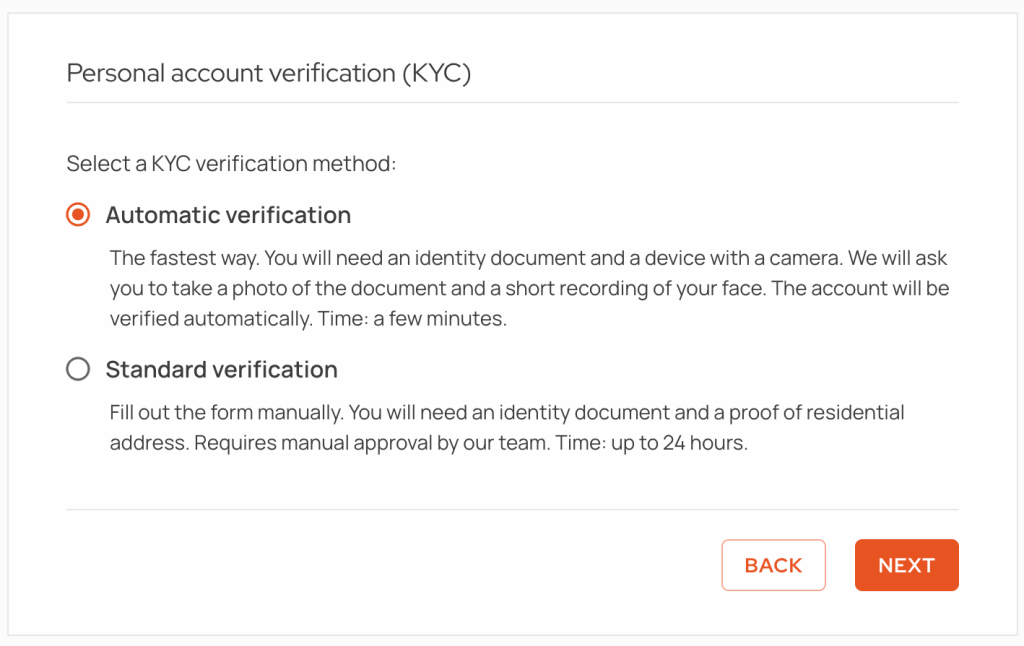
At this stage, you will be asked which verification method you would like to use. There are two available options:
Automatic verification – A fast online verification process using an identity document and a camera, usually completed within a few minutes.
Standard verification – A manual verification process requiring form completion and document upload, with approval typically taking up to 24 hours.
In the next section we will present how to go through each of the options.
Standard Verification
From the available list, select “Standard verification” and click “Next”.
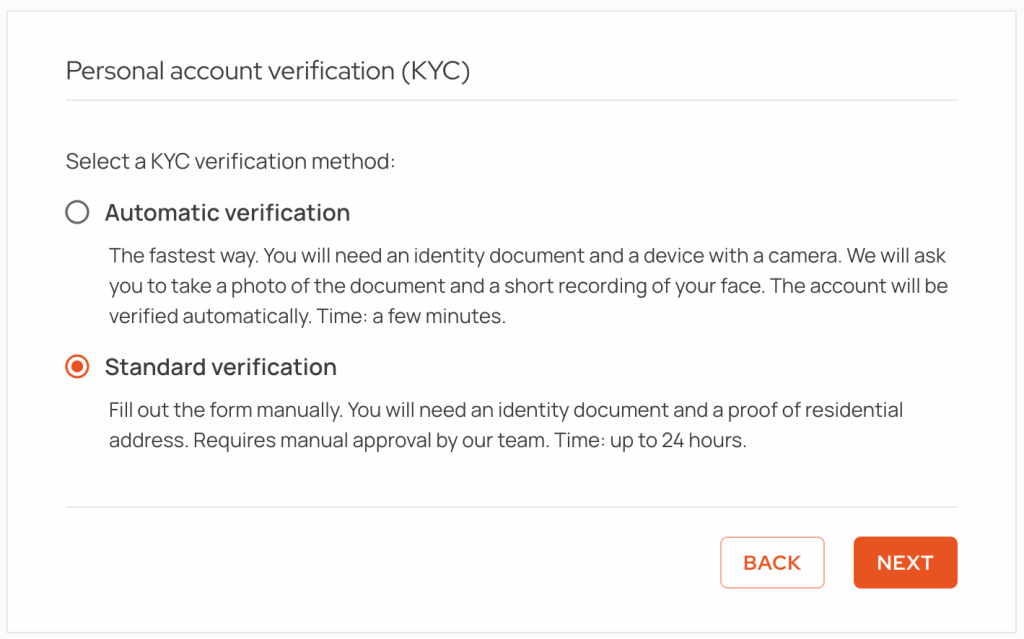
In the next step, provide your country of residence. Poland is selected by default.
Click “Next”
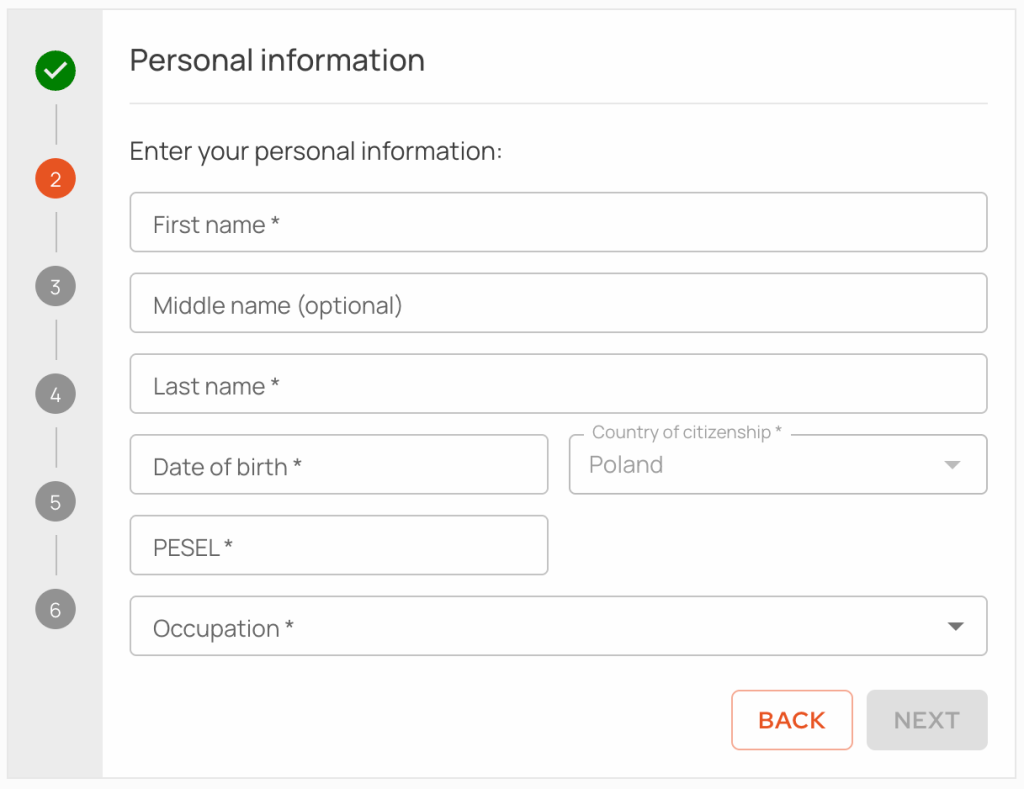
Enter your basic personal information. After entering your first name, middle name (optional), last name, date of birth, and PESEL number, click “Next”.
Confirm that you are not a politically exposed person (PEP), nor closely related to one. At the same time, confirm that you are aware of the criminal liability for making a false statement.
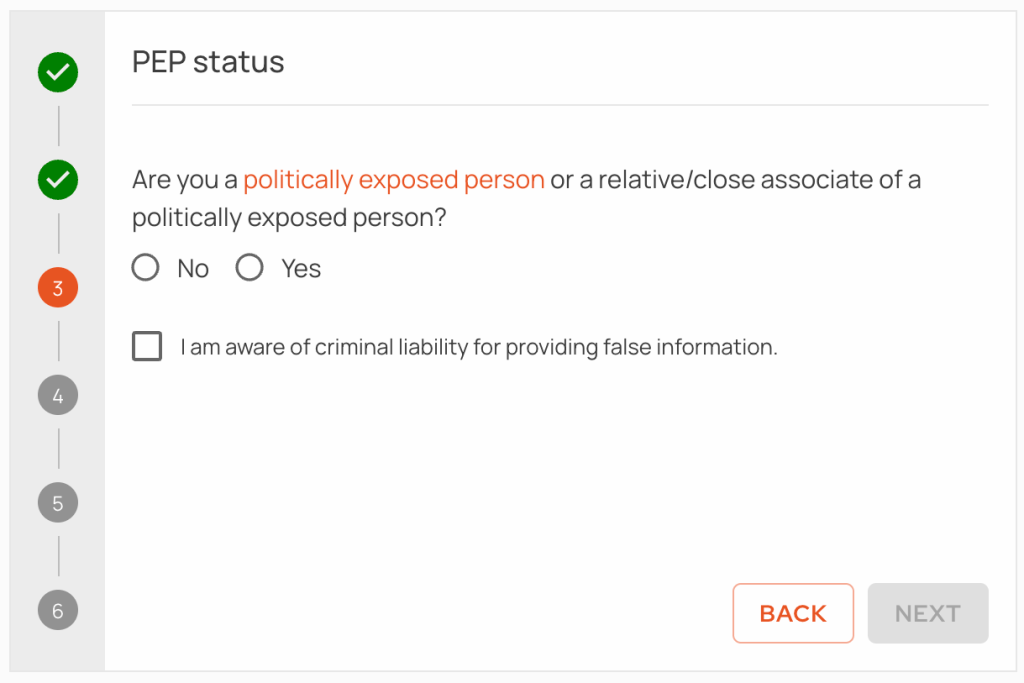
Proceed to the next step by clicking “Next”.
Provide the type of document: you may choose either an ID card or a passport.
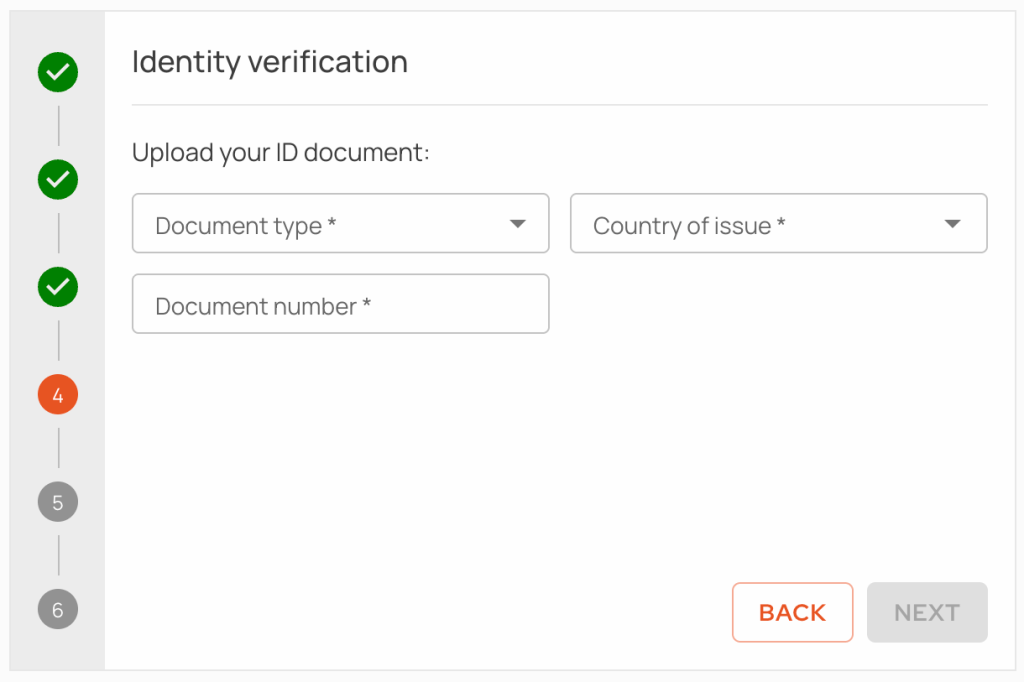
After selecting the document type, provide the issuing country and document number.
Once these details are completed, you will be asked to upload the front and back sides of the selected document. The files must be in .JPG, .PNG, or .PDF format and cannot exceed 5 MB.
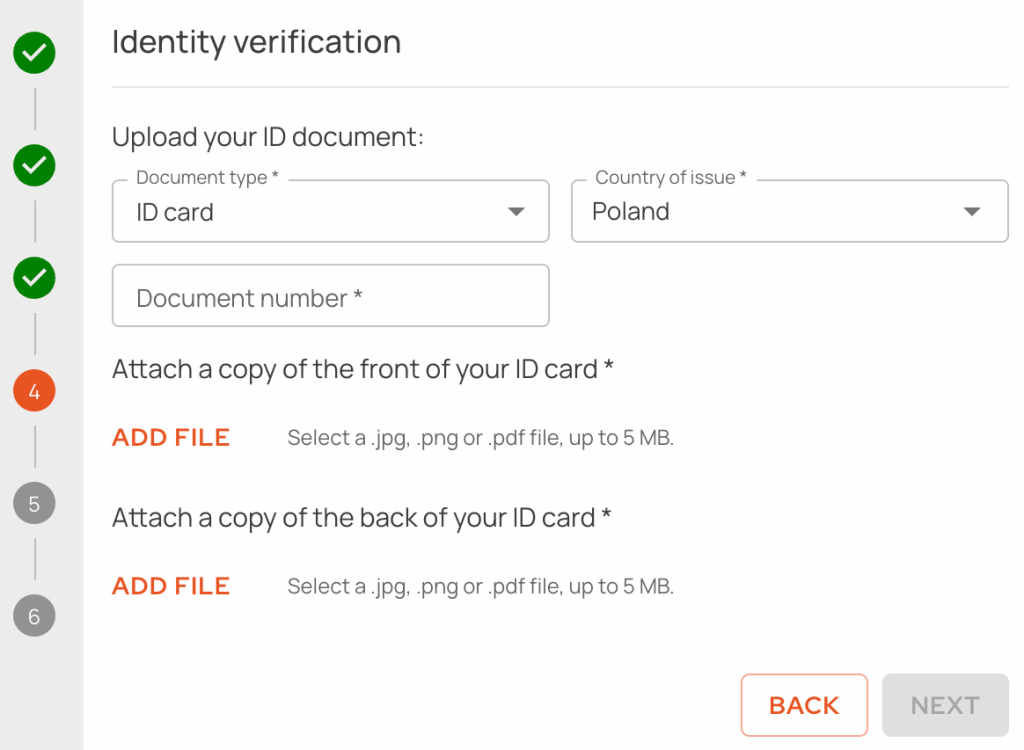
Click “Add File” to upload first the front side and then the back side of the document. After successfully adding the attachments, proceed to the next step.
In the next step, Kanga Exchange will ask you to provide your residential address and phone number. Required details include the street name, building number (and apartment number if applicable), city, and postal code.
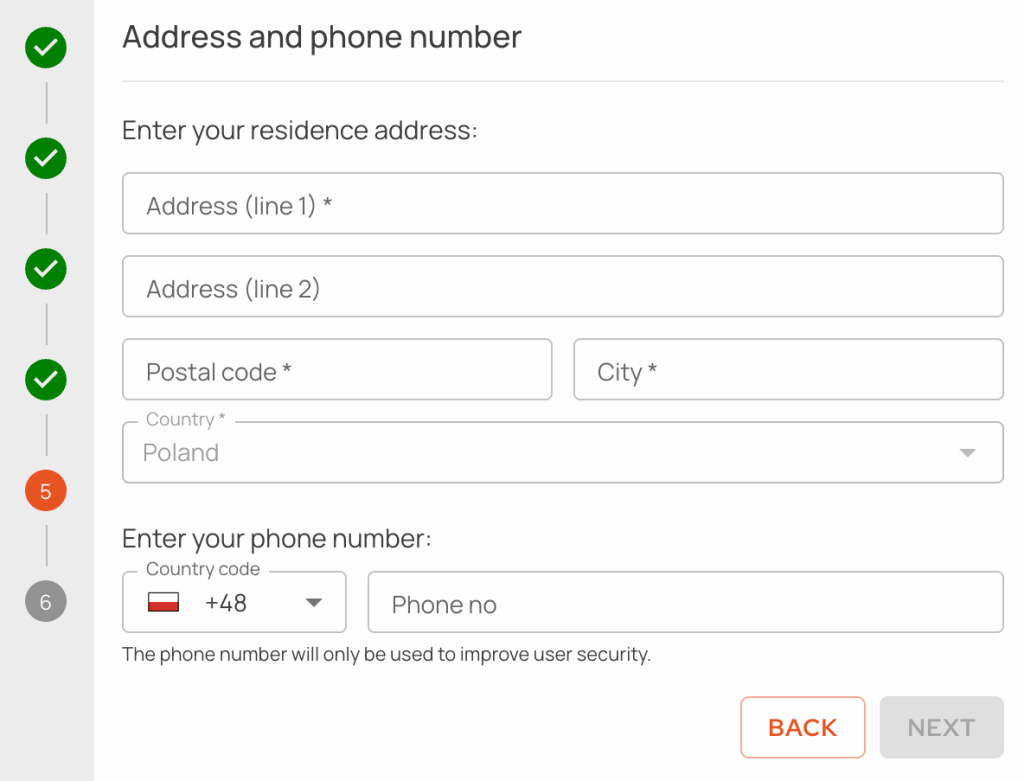
After completing the form, proceed to the sixth stage of verification by clicking “Next”.
To confirm your residential address, upload one of the following documents:
- utility bill (electricity, gas, water, etc.),
- phone, internet, or TV bill,
- bank account or credit card statement,
- electronic bank transfer confirmation (original PDF file only),
- insurance bill,
- certificate of residence issued by a city or municipal office,
- other document (e.g., a personalized invoice for online shopping showing your residential address).
The documents do not need to be paper copies; electronic bills, statements, and certificates are also accepted. The file must be in .JPG, .PNG, or .PDF format and cannot exceed 5 MB.
Complete the process after uploading the document by clicking “Submit”.
You will be notified of the verification result by email. Most accounts are verified within 2 business days; however, in exceptional cases, the waiting time may be longer.
Click “OK” to exit the KYC wizard.
Additionally, it may be necessary to take a selfie holding your ID card and a handwritten statement signed with your first and last name. If this requirement applies, you will be notified by email.
Automatic Verification – Provided by Identt
From the available list, select “Automatic verification” and click “Next”.
Then choose the device that will be used for verification. You can choose either a smartphone or a computer. Please note that in the second case, a high-quality camera is required.
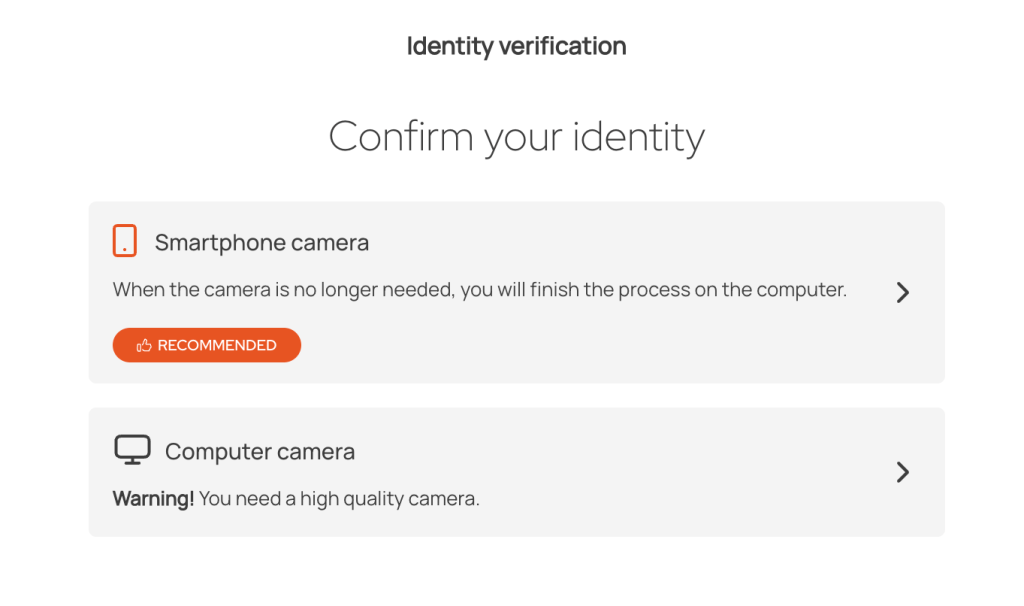
If you choose verification using a smartphone camera, scan the QR code.
In the next step, both on mobile and desktop, complete the required information shown on the screen:
- select the document type whose photo you will upload,
- select the issuing country of the document.
Tap “Next” to confirm.
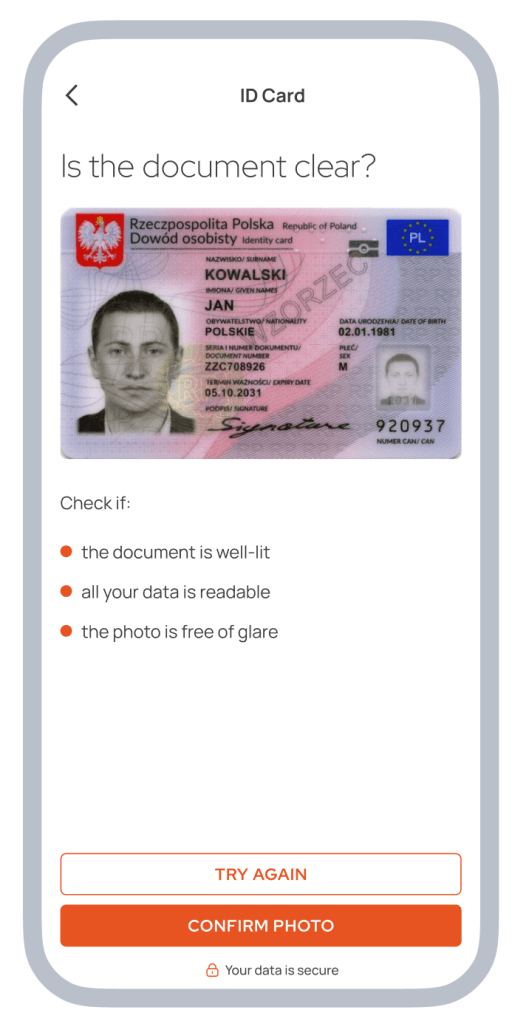
The next step is granting the software access to your camera. Once access is granted, upload photos of your identity document — both the front and back sides.
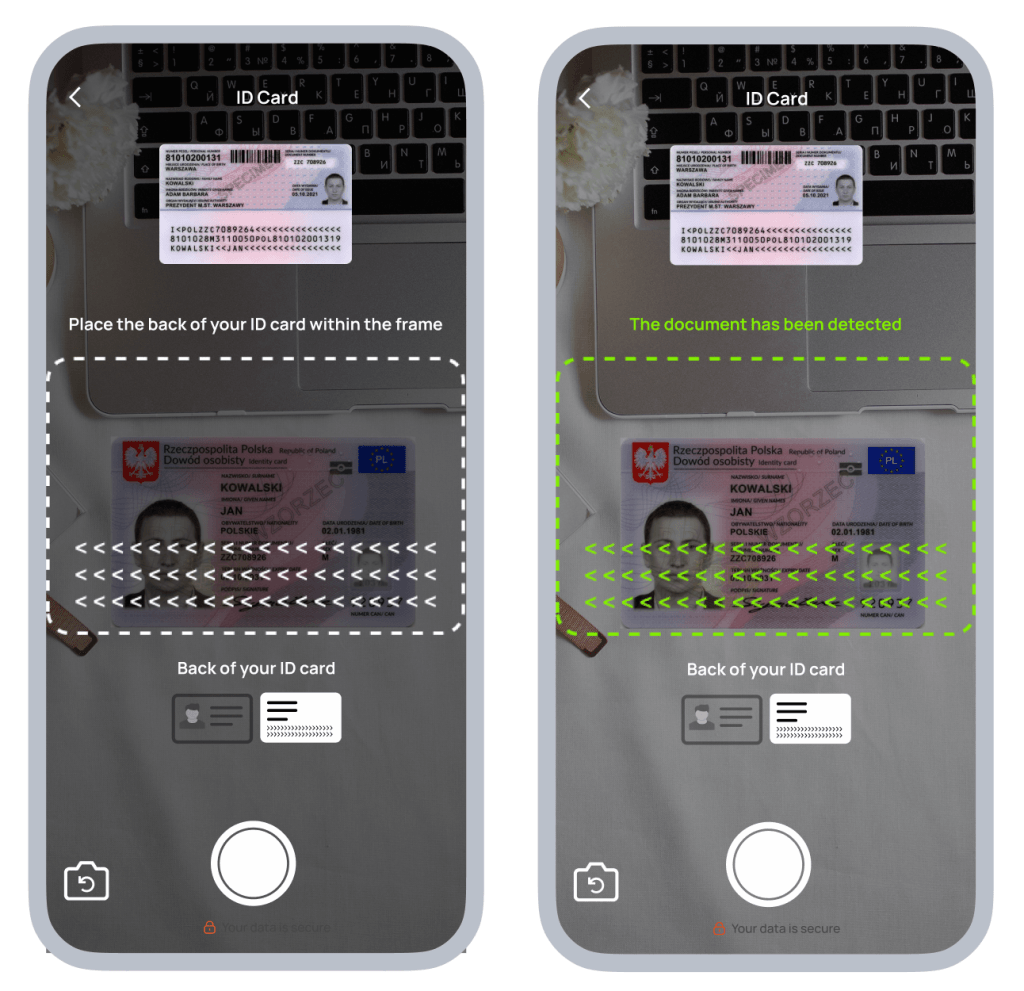
After uploading the photos, confirm that the images are correct and clear.
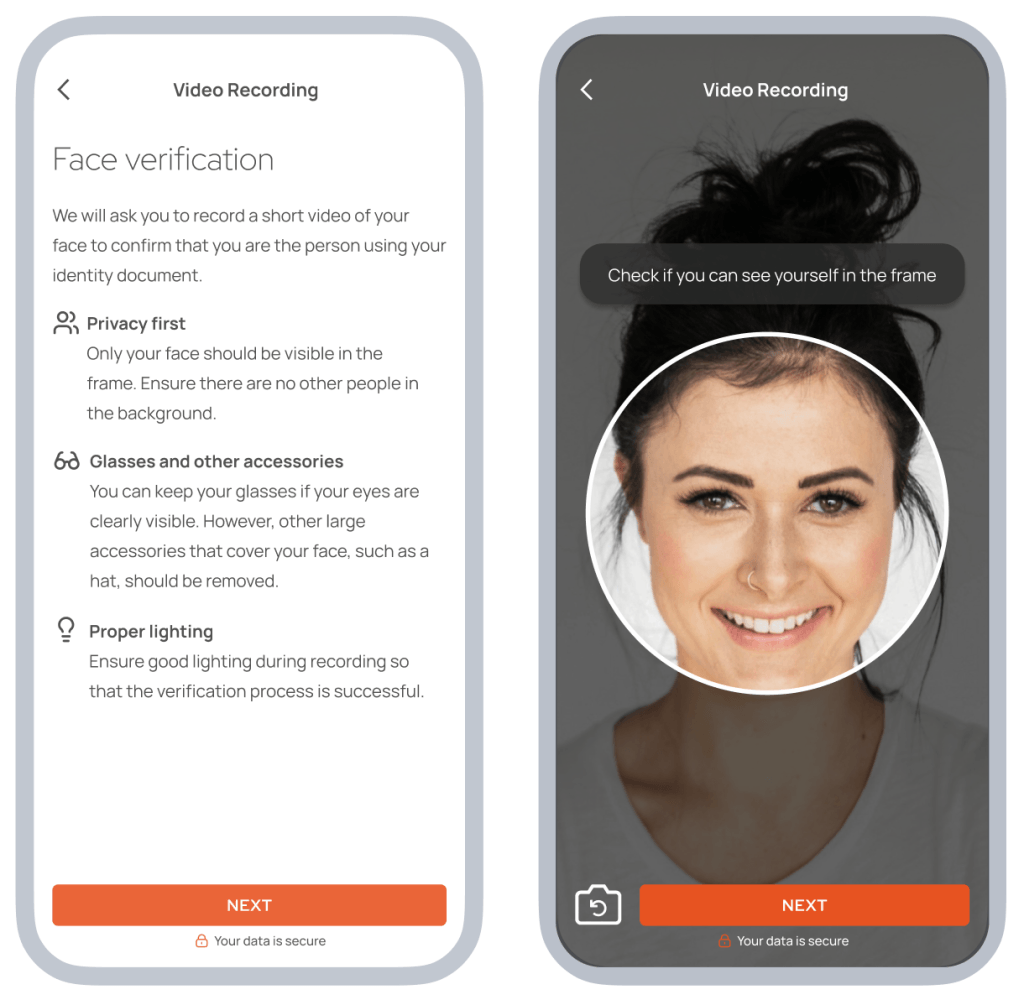
You will then be asked to complete facial verification according to the instructions displayed on the screen.
Follow the subsequent instructions that appear on the screen.
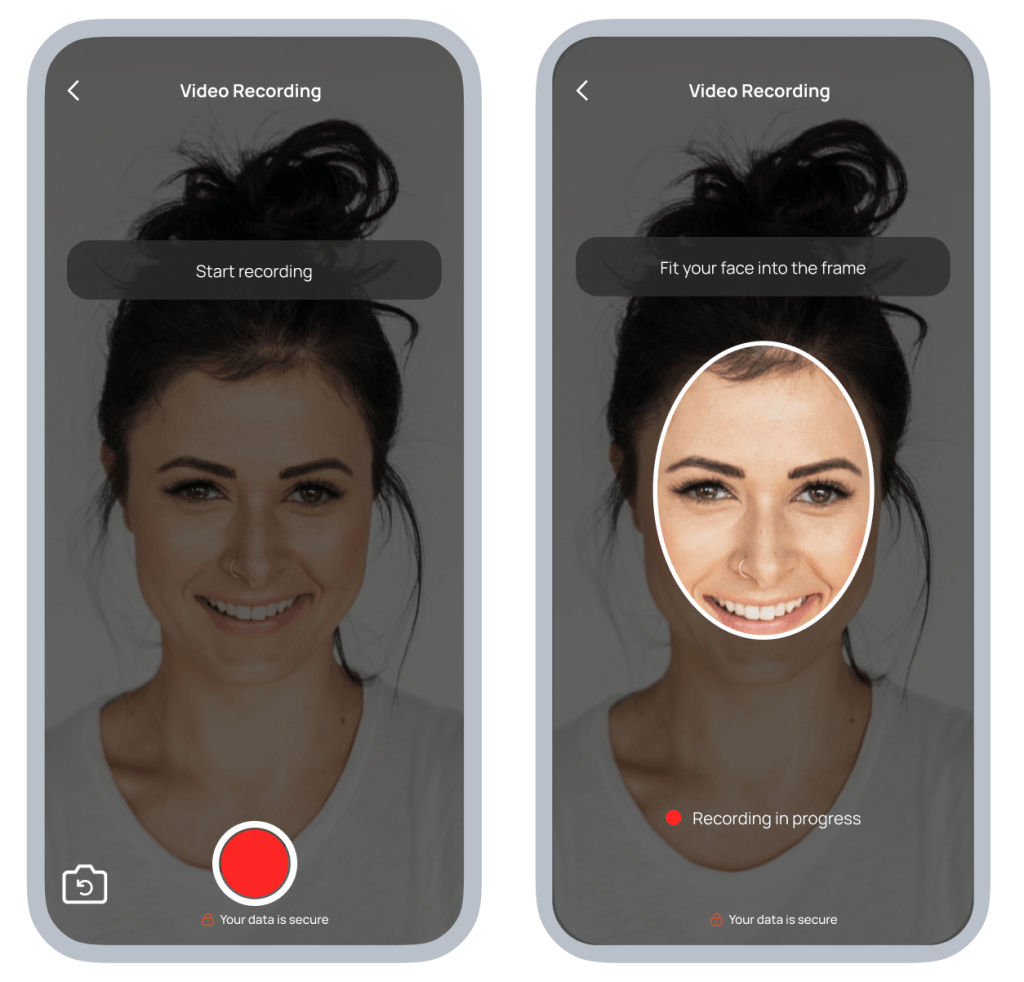
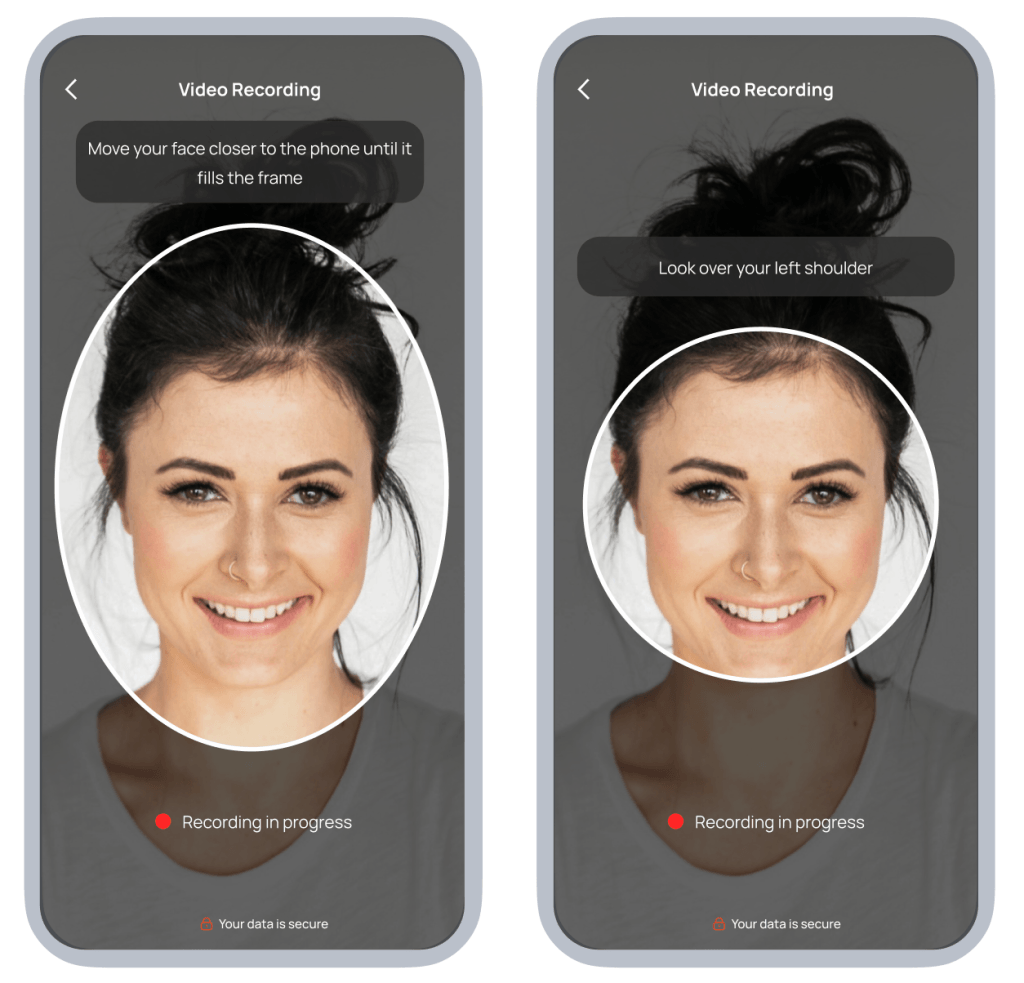
A text will also appear on the screen which you must read aloud into the camera.
The next step is uploading a document confirming your residential address, in accordance with the information shown in the instructions:
After confirming that the correct document has been uploaded, click the “SUBMIT” button to complete the process.
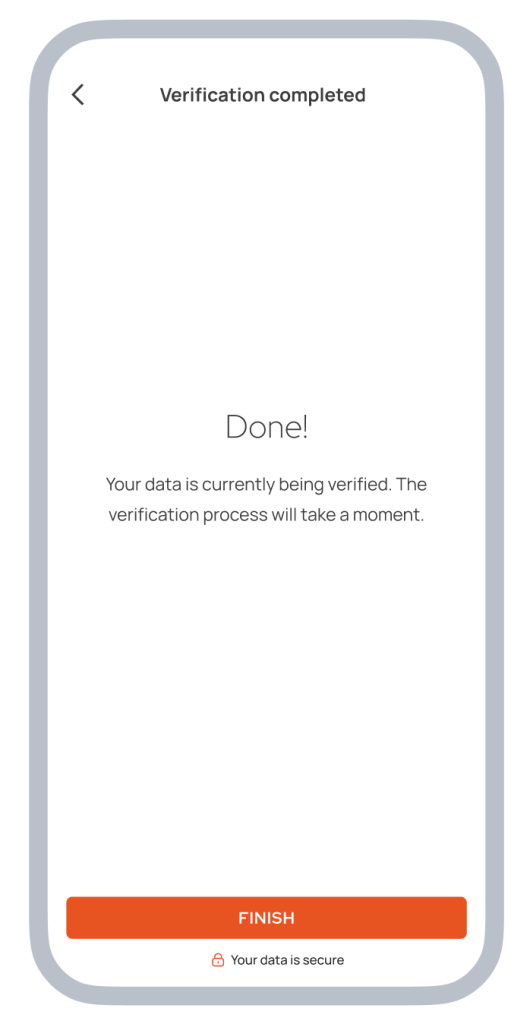
That’s all. If the verification is successful, you will be notified by email — just as you will be informed in the case of an unsuccessful verification.